Gimkit Host – How to Host a Live Gimkit Game Step by Step!
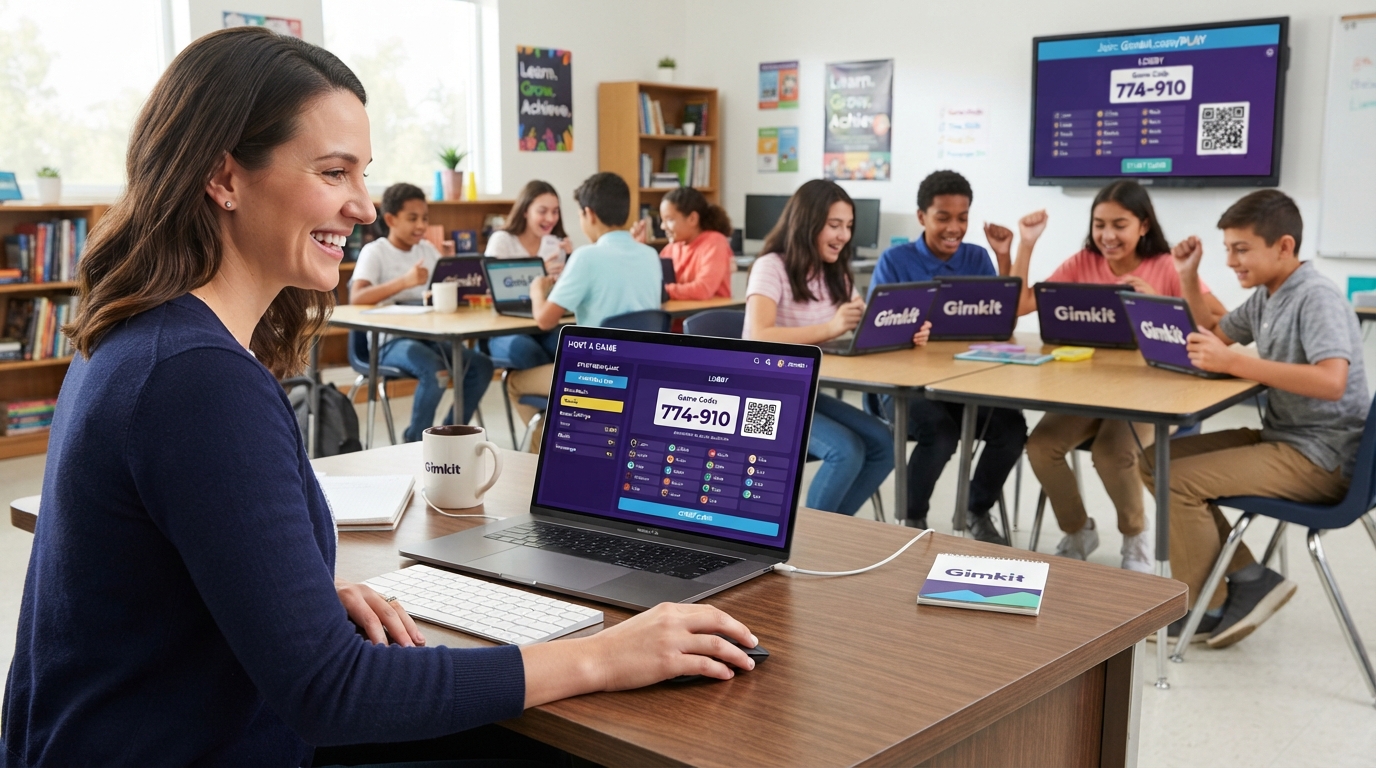
A Gimkit host is the person who sets up and runs a live Gimkit game. The host chooses a Kit, selects a game mode, adjusts the available settings, gives students a way to join, and starts the session.
If you’re hosting Gimkit for the first time, the process is straightforward: choose your Kit, select Play Live, pick a mode, configure the game, share the code or join link, and start when everyone is ready.
What Is a Gimkit Host?
A Gimkit host is usually a teacher or educator running a live classroom game.
The host controls the session from the setup stage through the end of the game. That includes selecting the question set, choosing the game mode, configuring available options, monitoring the lobby and managing the live session.
Students are the players. The host is the person running the activity.
This distinction matters because hosting and joining a Gimkit game are different processes. If you’re a student looking for a code to enter, you normally need the join instructions rather than the host workflow.
How to Host a Gimkit Game
You can think of live hosting as five basic steps.
1. Sign in to your Gimkit account
You need a Gimkit account to create Kits and host games. Educator accounts are free to create.
If you are setting up Gimkit for a classroom, an Educator account is the appropriate starting point.
2. Choose a Kit
A Kit is the question set that powers your game.
You can select an existing Kit from your dashboard or create one before starting the activity. Make sure the questions match the lesson or review objective you want students to work on.
For a recurring class activity, it is worth reviewing your Kit before the lesson rather than discovering problems after students have joined.
3. Click Play Live
Once you have selected the Kit, choose Play Live.
Gimkit opens its game-mode selection area, where you can choose the format you want your students to play.
Don’t automatically select a mode just because it looks entertaining. Consider what you want students to accomplish.
For example:
- Use a straightforward format for a quick review.
- Choose a collaborative option when teamwork is the goal.
- Consider the available class time before selecting a longer activity.
- Check whether the mode is available on your current plan.
4. Configure the game options
After choosing a mode, Gimkit takes you to the game-options screen.
The available settings depend on the mode you’re using, but options can include the game goal, whether students can join late, class connections and the Nickname Generator.
For a first session, avoid changing settings simply because they are available. Keep the game easy to understand.
If you’re working with younger students, the Nickname Generator can be useful because it assigns safe names instead of allowing students to enter their own.
5. Share the joining information and start
After the setup is complete, Gimkit opens the lobby.
Your live session will have joining information that students can use to enter the game. You can share the game code, display the QR code or provide the join link.
Wait until the expected players are in the lobby, check the player list, and then select Start Game.
That’s the core Gimkit hosting process.
How Do Students Join a Gimkit Game?
Students can generally join a live game using one of three simple methods:
Game code
Students can visit the Gimkit join page and enter the active game code displayed by the host.
This is useful when the whole class is sitting in the same room and the host screen is projected at the front.
QR code
The host can display a QR code from the live-game screen.
This is convenient when students are using phones or tablets because they can scan instead of manually entering a code.
Join link
The host can also share the direct game link.
This is especially useful for remote classes, video calls or learning-management systems where a clickable link is easier than a short code.
Do students need a Gimkit account?
For normal live-game participation, students generally do not need a Gimkit account.
The host does need an account to create Kits and run the game. Students can normally enter through the code, QR code or join link supplied by the host.
If you use Gimkit Classes, accounts can provide additional roster-related convenience.
What Can a Gimkit Host Control?
Hosting doesn’t stop when you press Start Game.
Depending on the game mode, the host can access controls for things such as:
- Viewing players
- Displaying the leaderboard
- Controlling game sound
- Managing the session
- Ending the game early
- Spectating or joining certain 2D games
- Adding time in supported 2D games
The exact controls depend on the type of game you’re running.
For 2D modes, the host can choose to participate as a player or watch as a spectator. Spectator mode can be particularly useful when your priority is monitoring the class rather than competing with students.
Which Gimkit Game Settings Should You Choose?
There isn’t one perfect setup for every classroom.
Start with three questions:
How many students are playing?
A mode that works well for a small group may not be appropriate for a very large class.
How much time do you have?
A short review period calls for a different setup from a full lesson activity.
What is the learning goal?
If you want fast recall practice, choose a format that keeps the focus on questions. If the lesson benefits from teamwork or discussion, select a mode that supports that objective.
The best Gimkit host setup is the one that supports the lesson rather than distracting from it.
Can You Host Gimkit for Free?
Yes.
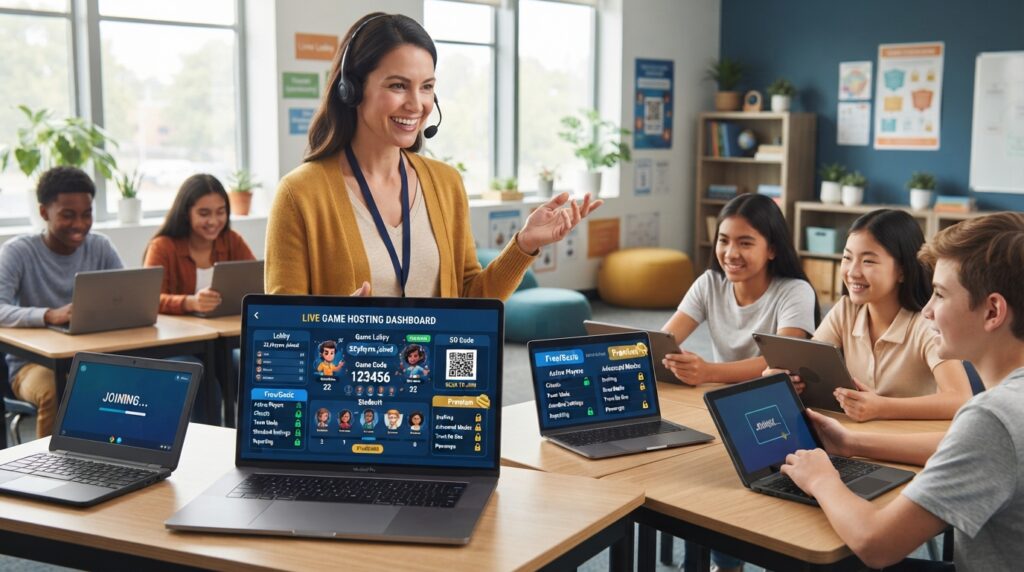
Gimkit offers a free Basic plan for educators. Basic allows educators to host games, use Classes and collect game reports.
The main limitation is access to game modes. Gimkit rotates its featured free modes, while Pro provides unrestricted access to its full collection of game modes.
Gimkit Pro also adds features such as Assignments and the ability to add images and audio to questions.
If you only need an occasional live review game, Basic may be enough. If you regularly need every available mode or want the additional Pro features, Pro may be more appropriate.
How Much Does Gimkit Pro Cost?
Gimkit currently lists Pro at:
- $14.99 per month, or
- $59.88 per year
Gimkit also offers group licensing for schools and departments.
Because educational software pricing and features can change, check Gimkit’s current official plan information before making a purchasing decision.
How Many Players Can Join a Gimkit Game?
The maximum depends on the type of game.
Gimkit currently lists a hard limit of 500 players for regular live games.
For 2D game modes, the hard limit is 60 players.
There is also a special limitation for Basic users playing Pro-exclusive modes: those games are limited to five players.
For a normal classroom, the practical issue isn’t just the published maximum. A large number of connected devices also places greater demands on the network.
If you’re running a large session, test your classroom connection before students arrive.
Gimkit Host Checklist Before You Start
A few minutes of preparation can prevent most avoidable problems.
Before class:
- Open the correct Kit.
- Check the questions.
- Confirm the game mode.
- Review the available game settings.
- Decide whether students can join late.
- Decide how students will receive the game information.
- Test the classroom network.
- Have the host screen ready before students enter.
- Check player names in the lobby.
- Make sure the selected mode fits your class size.
If the activity is important, also keep a backup plan available in case your school network or devices fail.
Gimkit Host Troubleshooting
Why does my Gimkit code not work?
First, check the code displayed in the active host lobby.
A code belongs to a particular live session. An old code from a previous game will not automatically work for a new session.
If necessary, use the current join link or QR code shown on the host screen.
Students cannot load the game
Start by checking the students’ internet connections and browsers.
If multiple students are experiencing the same problem at once, the issue may be related to the school network, firewall or proxy rather than individual devices.
Gimkit also provides a compatibility test that can help identify connection problems.
The game is slow with a large class
First check the player limit for the selected mode.
Then consider the network.
A large group requires a more reliable connection than a small group, so a technically valid game can still perform poorly if the classroom network is overloaded.
If necessary, divide students into smaller groups or use a mode with an appropriate player limit.
Gimkit appears to be down
If several unrelated devices suddenly stop working, don’t immediately change every classroom setting.
Check whether Gimkit is experiencing a service problem. If the platform is operating normally, then move on to device and network troubleshooting.
What Happens After a Gimkit Game Ends?
The value of hosting isn’t limited to the competition itself.
When you host a Kit that you own, Gimkit can provide game reports containing information about class and individual performance.
These reports can help you identify questions or concepts that students struggled with.
For example, if a large percentage of the class misses questions about the same topic, that may indicate an area worth revisiting in the next lesson.
This turns Gimkit from a simple classroom game into a useful source of feedback.
Gimkit Host vs. Gimkit Join
These terms are easy to confuse.
Gimkit host:
The person who creates and manages the live game.
Gimkit join:
The process a student or player uses to enter a game that someone else has already started.
If you’re a teacher preparing a session, search for the hosting instructions.
If you’re a student who has been given a code, you probably need the join page instead.
Can a Student Host a Gimkit Game?
Yes, but student accounts have different limitations.
Gimkit’s current documentation states that student logins can host games with a maximum of five players.
For classroom teaching, however, an Educator account is the normal hosting route.
Can You Host Gimkit Without Logging In?
No.
You need a Gimkit account to create Kits and host games.
The good news is that creating an Educator account is free, so you don’t have to purchase Pro simply to get started with live hosting.
Can You Host Gimkit Remotely?
Yes.
The host can share a game code or direct join link through a remote-class platform or video-call chat.
Students still need access to the Gimkit service, so it is smart to test the connection before the lesson begins.
For remote teaching, a join link is often more convenient than asking every student to type a code manually.
What Is the Difference Between a Live Game and a Gimkit Assignment?
A live game happens with students participating at the same time while the host manages the session.
An Assignment is different because students can complete the Kit independently rather than all playing simultaneously.
Assignments are available as part of Gimkit Pro.
If your goal is a synchronized classroom review, use live hosting. If students need to complete work on their own schedule, an Assignment may be more suitable.
Frequently Asked Questions About Gimkit Hosting
1. What is a Gimkit host?
A Gimkit host is the person who launches and manages a live Gimkit game. The host selects the Kit and game mode, configures the available settings, shares the joining information and starts the session.
2. How do I host a Gimkit game?
Sign in to your Gimkit account, choose a Kit, select Play Live, choose a game mode, configure the options, share the game code or join link and start the game when your players are ready.
3. Is Gimkit hosting free?
Yes. Educators can use Gimkit Basic for free and host live games. Pro adds unrestricted access to game modes and additional features.
4. Do students need a Gimkit account?
Students generally don’t need an account to join a standard live game. They can use the code, QR code or join link supplied by the host.
5. How many people can join a Gimkit game?
Gimkit currently lists a 500-player hard limit for regular live games and a 60-player hard limit for 2D modes. Basic users playing Pro-exclusive modes have a five-player limit.
6. Why isn’t my Gimkit code working?
Make sure you’re using the code from the current active game. Old codes belong to previous sessions. You can also use the current QR code or join link displayed by the host.
7. Can students host Gimkit?
Student accounts can host games, but Gimkit currently limits student-account hosting to five players. Educator accounts are the normal choice for classroom hosting.
8. What is the easiest way for students to join?
For an in-person class, displaying the game code or QR code is convenient. For remote teaching, a direct join link is often easier.
Final Takeaway
A Gimkit host is essentially the person responsible for running the live learning game. The basic workflow is simple: choose a Kit, select Play Live, choose a mode, configure the game, share the code or join link, check the lobby and start. The most important part is not simply getting the game running. Choose a mode and settings that fit your students, lesson objective and available time.
For occasional classroom reviews, Gimkit Basic can be enough. For educators who need all game modes and additional features, Pro provides a broader set of options. And when something goes wrong, check the active game code, player limits, device connections and school network before assuming the entire platform is broken.